Firefox bookmarklet to Thunderbird email with highlight and autosend
I find articles/websites that I want to follow up on later and the method I’ve been using is to use the email button in the menu bar. This triggers my email Thunderbird and I then have to fill in To: Sender with my email address and then send the email.

Step 1. Using bookmarklet to send email of Link of page to myself
I then came across a bookmarklet that would send the email to your address, so that you didn’t need to add the To: information in the email, reducing the process by one step, and you still had to hit send the email.
javascript:location.href='mailto:[email protected]?subject='+document.title+'&body='+escape(location.href)I have another bookmarklet that is like the Firefox Email a link to this page button so that I can send the link to other people.
The reason I do it this way is so that it encourages me to use the bookmarklet rather than the Firefox button first, and I remove the Firefox button, that way I try and get used to using bookmarklets more frequently.
Step2 ?️ Highlighting Subject in email with AutoHotKey ?️ and sending email
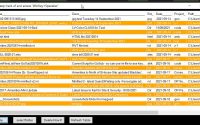
I wrote a simple AutoHotKey script that would highlight my emails by putting some emoji’s(?️) at the end and front of the Subject so that I could clearly see that those emails were self sent.

The script then sends the email off after writing a little note in the body. It basically tabs through the email fields in Thunderbird and then uses Ctrl+Enter to send the email at the end.
send, ^{tab 3}
Send, ?️
send,{Ctrl down}{Left 50}️
send,{Ctrl up}
send,?️
send, {Tab}
;MsgBox, ,,1,123,1000
send, {Ctrl down}{Left 20}
send,{Ctrl up}
send, {Enter}
send, {Up}
send, Max info for you
send,{Ctrl down}{Enter}
send,{Ctrl up}

Return
In my Stream Deck Setup I had a key for putting the highlighting (step 2 above ) after I’d triggered the bookmarklet in Firefox and I needed to put the mouse cursor at the end of the Text in the Email Subject line before triggering the key.
I’d previously not been able to figure out how to use bookmarklets on my Stream Deck .
So, I now want to combine these 2 events into one action button in either my Stream Deck or using MaxLauncher.
Emoji’s where from?
I use Emojipedia to get mine
Issues with Emoji display in new .ahk file- ðŸï¸ instead of ?️
But there was another issue, and this relates to emoji’s displaying correctly. I’d created a file in VS Code & cut/pasted the code, along with the emoji’s and tried to run it, and it executed fine, apart from the emoji icons being corrupted and not displaying properly.
Although they looked fine in the .ahk file , even after closing and reopening, they just did not send correctly.
Apparently it’s the encoding of the file, so the .ahk is just a .txt file but it has a UTF-8 encoding, this displays ?️ as ðŸï .
You have to change the file encoding, I do this in Notepad++ and there is a Tab that allows you to change the encoding from UTF-8 to UTF-8-BOM and that works fine

Combining the 2 actions into one script in Firefox
So to make this work you need to use Firefox as it allows you to add a keyword to trigger a bookmark or bookmarklet. I’ve discussed that in a different article Bookmarklets, Firefox, AutoHotKeys & maybe MaxLauncher too.
So once you have the bookmarklet setup with a keyword, in this instance its called “eme” (Short for email me)
I then send the appropriate keystrokes to activate the bookmarklet on a specific page and then pause, to allow for the email to be opened up, then the 2nd part of the script tabs until it gets to the subject line and puts in the emoji’s and adds the note in the body of the email and sends it.
So final script is :
; I've the email bookmarklet with keyword  eme (emailme) in Firefox
; works but emoji's don't come out right
WinActivate, mozela firefox
send, ^l
; send, {Right 2}
send, eme
send, {enter}

sleep, 1000
; InputBox, Query, What to Highlight, What is query?
; send, {enter}
send, ^{tab 3}
Send, ?️
send,{Ctrl down}{Left 50}️
send,{Ctrl up}
send,?️
send, {Tab}
;MsgBox, ,,1,123,1000
send, {Ctrl down}{Left 20}
send,{Ctrl up}
send, {Enter}
send, {Up}
send, Max info for you
send,{Ctrl down}{Enter}
send,{Ctrl up}

Return
End comment
I’m just writing this, and I’ll do a short video on the topic so that I have it for reference. I do recall that it took me a while to figure out that I had to change the file encoding to get the emoji’s to work properly.
So this is an Aide-mémoire for later reference and others may find it of interest.